Introduction
Most Windows users who migrate to Ubuntu end up confused about software installation. They go to a website, download a .tar.gz file, double-click it, and don't see a Next-Next-Next-Finish wizard. This tutorial is intended to introduce you to the preferred methods of software installation in Ubuntu.
Rather than leaving it up to the user to track down installer files and keep applications updated, Ubuntu (like many other Linux distributions) has a software package management system that provides a searchable database of easily installable applications (like an online shopping cart but the software is cost-free), which it will download and install for you with a few clicks.
For those of you with smartphones, it's a very similar process to installing applications using the iTunes App Store or Android Market.
Installing 101: Ubuntu Software Center
The best place to start with this package management process is to use a simple interface for it called Ubuntu Software Center.

If you're using Unity, you can find Ubuntu Software Center on the left side of your screen.

If you're using classic Gnome, go to Applications and select Ubuntu Software Center.

If you already know what software you're looking for, you can begin typing the name of it in the top-right corner to begin the filtering process. If you don't know, you can also browse by category.
In this case, let's say you're looking for an audio recording and editing program called Audacity.
So after filtering it, click Install and get prompted to authenticate with your password.

Then after a few seconds, Audacity is downloaded and installed.


Once it's finished installing, it's ready for you to use.
Manual download: .deb
Most of the time, if you need software, you can use the Software Center to install it from the online repositories. Sometimes, software is not available in the repositories, and you have to go to a website to download it. If you are able to download a file with a .deb extension, this is the software package format Ubuntu prefers.

After you download the .deb, it should run in the Ubuntu Software Center by default (if you're using Ubuntu 10.04, it may still run in the GDebi Package Installer).

After Ubuntu Software Center loads, click Install to install the .deb file. You'll be prompted for your password. Go ahead and enter it if you trust the source you downloaded the file from.

... your application should be ready to use.
Most Windows users who migrate to Ubuntu end up confused about software installation. They go to a website, download a .tar.gz file, double-click it, and don't see a Next-Next-Next-Finish wizard. This tutorial is intended to introduce you to the preferred methods of software installation in Ubuntu.
Rather than leaving it up to the user to track down installer files and keep applications updated, Ubuntu (like many other Linux distributions) has a software package management system that provides a searchable database of easily installable applications (like an online shopping cart but the software is cost-free), which it will download and install for you with a few clicks.
For those of you with smartphones, it's a very similar process to installing applications using the iTunes App Store or Android Market.
Installing 101: Ubuntu Software Center
The best place to start with this package management process is to use a simple interface for it called Ubuntu Software Center.

If you're using Unity, you can find Ubuntu Software Center on the left side of your screen.
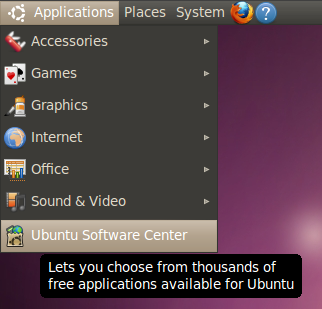
If you're using classic Gnome, go to Applications and select Ubuntu Software Center.

If you already know what software you're looking for, you can begin typing the name of it in the top-right corner to begin the filtering process. If you don't know, you can also browse by category.
In this case, let's say you're looking for an audio recording and editing program called Audacity.
So after filtering it, click Install and get prompted to authenticate with your password.

Then after a few seconds, Audacity is downloaded and installed.


Once it's finished installing, it's ready for you to use.
Manual download: .deb
Most of the time, if you need software, you can use the Software Center to install it from the online repositories. Sometimes, software is not available in the repositories, and you have to go to a website to download it. If you are able to download a file with a .deb extension, this is the software package format Ubuntu prefers.

After you download the .deb, it should run in the Ubuntu Software Center by default (if you're using Ubuntu 10.04, it may still run in the GDebi Package Installer).

After Ubuntu Software Center loads, click Install to install the .deb file. You'll be prompted for your password. Go ahead and enter it if you trust the source you downloaded the file from.

... your application should be ready to use.
